
User HDL Link
Link to external HDL files folder without embedding code in the project. Supports GHDL syntax checking, auto-detection of ports and generics, and selective file inclusion for compilation.
Introduction
The User HDL Link component allows you to link to an external folder containing HDL files instead of embedding the code directly in the SCI-Compiler project. This is ideal for:
- Working with existing HDL codebases
- Using external version control (Git, SVN)
- Sharing HDL code across multiple projects
- Editing HDL in your preferred external editor (VS Code, Vivado, etc.)
Key features:
- External folder linking: Reference HDL files without copying
- Relative path support: Portable projects with relative paths
- Selective file inclusion: Choose which files to compile
- GHDL syntax checking: Verify code without full compilation
- Auto-detection: Automatically detect ports and generics from HDL
- Multiple file support: Include multiple HDL files in compilation
Pin Description
User-defined ports as configured in the Ports table.
Port types:
- STD_LOGIC: Single bit signal
- STD_LOGIC_VECTOR: Multi-bit bus (any width)
- STD_LOGIC_VECTOR_TM: Time-multiplexed vector
- INTEGER: Integer type (converted internally)
Port functions:
- PORT: Standard data port
- CLOCK: Clock signal (auto-connected to system clock)
- RESET: Reset signal (auto-connected to global reset)
Properties
JSON containing project configuration
JSON configuration storing:
- Folder path
- File list with inclusion flags
- Port definitions
- Generic definitions
- Top entity name
Automatically managed by the configuration dialog.
Name of the top-level entity
Name of the top-level entity to instantiate.
This must match:
- The entity name in your VHDL code
- One of the files marked with TOP badge
- The entity whose ports are defined in the Ports table
HDL Language (VHDL or Verilog)
Default: VHDL
Options: VHDL Verilog
Path to folder containing HDL files (relative to .scf or absolute)
Path to the folder containing HDL files.
Supports:
- Absolute paths:
C:\Projects\MyHDL\src - Relative paths:
..\HDL\pcores(relative to .scf file)
Use the folder browse button or type manually. Click “Make Relative” to convert to a portable relative path.
HDL language of the source files.
Options:
- VHDL: VHSIC Hardware Description Language (.vhd, .vhdl)
- Verilog: Verilog HDL (.v, .sv) - limited support
Functional description
The User HDL Link component provides a configuration interface to link external HDL files into your SCI-Compiler project.
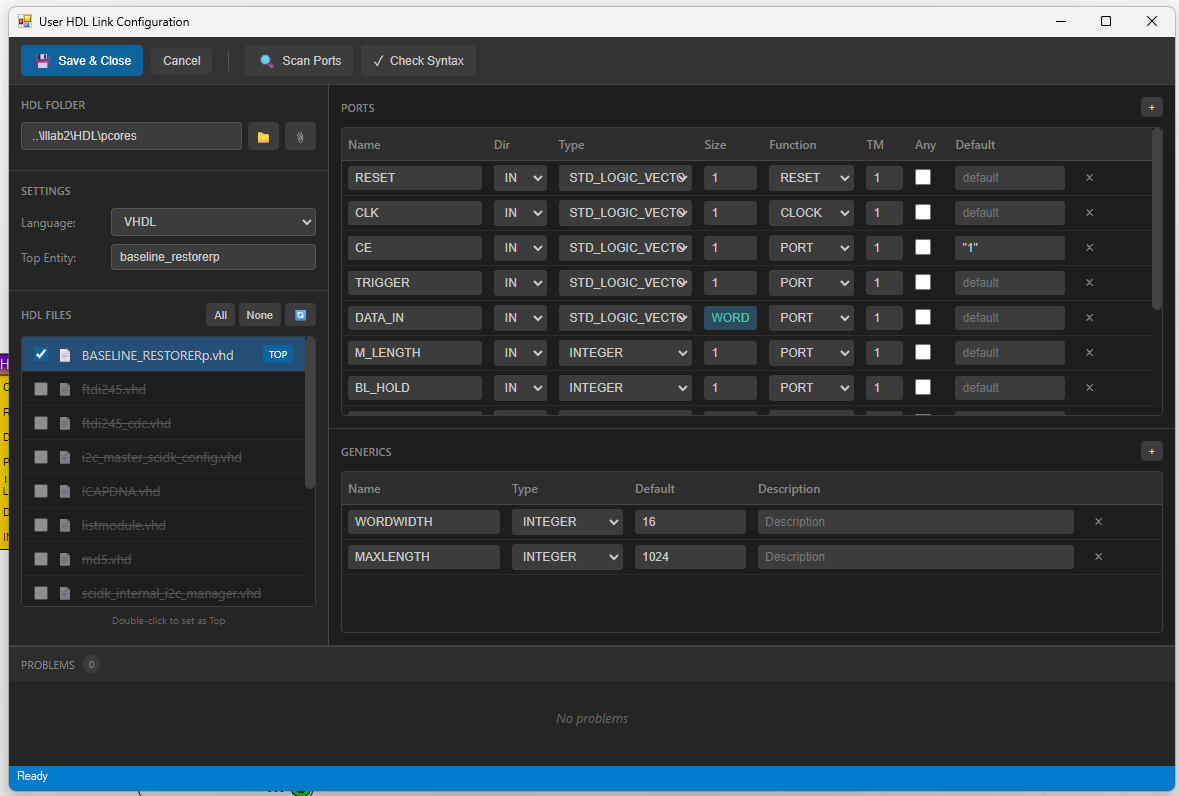
Configuration interface
The configuration dialog consists of:
- Toolbar: Save & Close, Cancel, Scan Ports, Check Syntax
- HDL Folder: Path to the external HDL folder
- Settings: Language and Top Entity selection
- HDL Files: List of detected files with inclusion checkboxes
- Ports table: Port definitions for the top entity
- Generics table: Generic parameters
- Problems panel: Syntax errors and warnings
Folder selection
Select an HDL folder using:
- Click the folder button to browse
- Or manually enter the path
The path can be:
- Absolute: Full path like
C:\Projects\MyHDL - Relative: Path relative to .scf file like
..\HDL\pcores
Click the Make Relative button to convert an absolute path to relative.
File selection
Once a folder is selected, all HDL files are listed:
- Checkbox: Include/exclude file from compilation
- TOP badge: Marks the top-level entity file
- Double-click: Set a file as the top entity
Use the All/None buttons to quickly select or deselect all files.
Auto-detection
Click Scan Ports to automatically detect:
- Entity name from the top file
- Port definitions (name, direction, type, size)
- Generic parameters (name, type, default value)
- Size expressions that depend on generics
The parser uses GHDL for accurate VHDL parsing.
I/O Configuration
Ports:
| Property | Description |
|---|---|
| Name | Port identifier (must match HDL) |
| Dir | IN or OUT |
| Type | STD_LOGIC, STD_LOGIC_VECTOR, INTEGER |
| Size | Bit width or expression (e.g., WORDWIDTH) |
| Function | PORT, CLOCK, or RESET |
| TM | Time multiplexing factor |
| Any | Variable size port |
| Default | Default value for input ports |
Default value formats:
- STD_LOGIC:
'0','1','Z','X','U' - STD_LOGIC_VECTOR:
"01010101"(binary) orx"FF"(hex) - INTEGER:
123or-45
Generics:
| Property | Description |
|---|---|
| Name | Generic parameter name |
| Type | INTEGER, NATURAL, POSITIVE, etc. |
| Default | Default value |
| Description | Documentation |
Syntax checking
Click Check Syntax to verify all included files using GHDL. Errors appear in the Problems panel with:
- File name and location
- Error or warning severity
- Descriptive message
Example workflow
- Create HDL folder: Organize your HDL files in a folder
- Add component: Insert User HDL Link into your schematic
- Configure: Double-click to open configuration
- Select folder: Browse to your HDL folder
- Select files: Check which files to include
- Set top entity: Double-click the top-level file
- Scan ports: Auto-detect ports and generics
- Verify: Check syntax for errors
- Connect: Wire up signals in the schematic
Advantages over Custom HDL (NEW)
| Feature | User HDL Link | Custom HDL (NEW) |
|---|---|---|
| File storage | External folder | Embedded in project |
| External editing | Easy (any editor) | Limited |
| Version control | Native Git/SVN | Manual export |
| Code sharing | Reference same folder | Copy required |
| Project size | Smaller .scf files | Larger with code |
Advantages of Custom HDL (NEW)
| Feature | Custom HDL (NEW) | User HDL Link |
|---|---|---|
| Portability | Self-contained | Requires folder |
| Built-in editor | Monaco Editor | None |
| Hierarchy view | Yes | No |
Typical use cases
- Existing IP cores: Link to vendor-provided HDL
- Shared libraries: Common HDL across projects
- Team development: Separate HDL and schematic repos
- External tools: Edit in Vivado, VS Code, etc.