Create New Project
This document provides an overview of settings window. It explains what can be done and how to use it.
Compiler Manager — Settings and Board Configuration
This window allows you to manage FPGA compilers (Vivado and Quartus) and assign them to each supported board.
Overview
The Compiler Manager window is divided into two main sections:
-
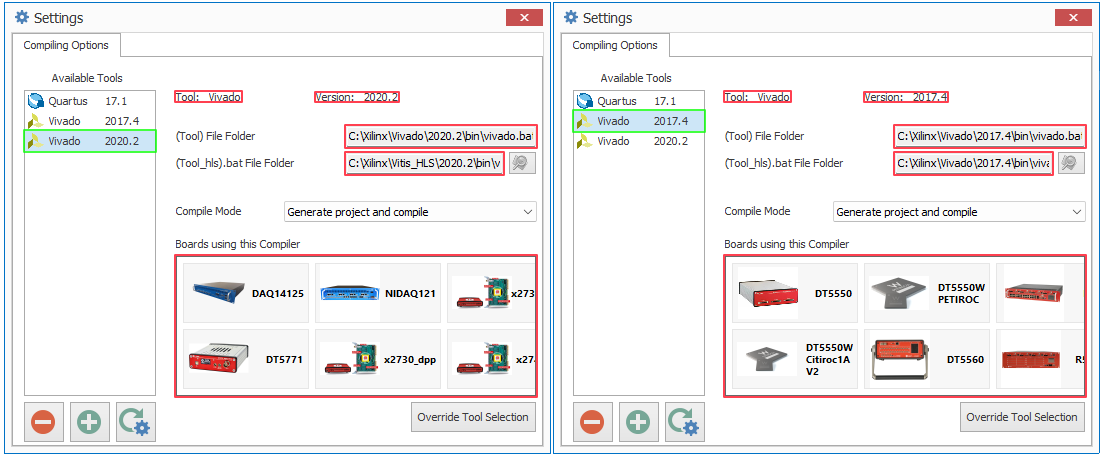
Available Compilers List — shows all the Vivado and Quartus installations added in Sci-Compiler by User.
-
Board Overview — displays the boards that are currently configured to compile with the selected compiler.
This tool ensures the user to have more than just one compiler available on the device.
Available Compilers
Each row in the list represents a compiler installation added by user, showing:
| Column | Description |
|---|---|
| Icon | Identifies the tool (Vivado or Quartus) |
| Tool | Name of the compiler |
| Version | Version of the tool |
When a compiler is selected, detailed information appears on the right side, including installation paths and (for Vivado) the HLS executable.
Compiler Actions
Add a Compiler Manually
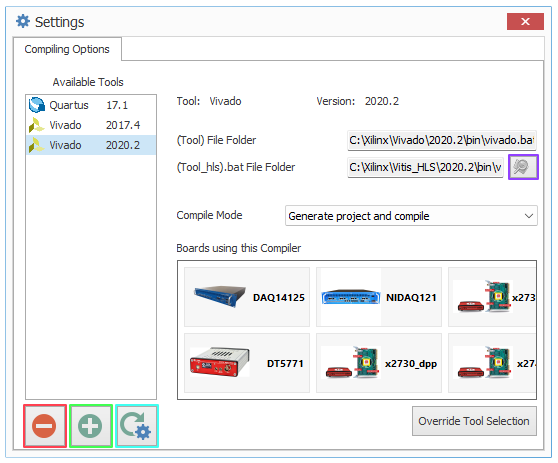
- Click “Add”.
- Select the folder containing (usually the folder “bin”):
vivado.bat(for Vivado)- or
quartus_sh.exe(for Quartus)
- The system validates the selection and retrieves version information automatically.
- Once confirmed, the new compiler appears in the list.
Remove a Compiler
- Select a compiler entry from the list.
- Click “Remove”.
- Confirm the deletion when prompted.
- The compiler will be removed from disk and unlinked from any board that used it.
If a board was using that compiler, it will automatically revert to its default configuration.
WARNING: when removing a compiler if the default one of a board is not installed the board won’t compile until a new valid compiler version is installed and added
Auto Detect Compilers
Click “Auto Detect” to let the system search automatically for installed tools.
Typical paths checked are:
C:\Xilinx\Vivado\...C:\intelFPGA\...C:\intelFPGA_lite\...C:\altera\...
At the end of the process, a message will show how many installations were found and added.
HLS File (Vivado only)
For Vivado installations, the system also looks for the corresponding Vitis_HLS or Vivado_HLS file.
If not found, you can set it manually by clicking “Search HLS” and selecting the .bat file.
The version of the HLS file must match the Vivado version shown in the list.
Boards using selected compiler
Below the compiler info there is a visual overview showing all boards recognized by the application that compile with the selected compiler
Each board tile displays:
- Board image
- Board name
Attention: Tiles don’t perform action if clicked.
Board Compiler Configuration
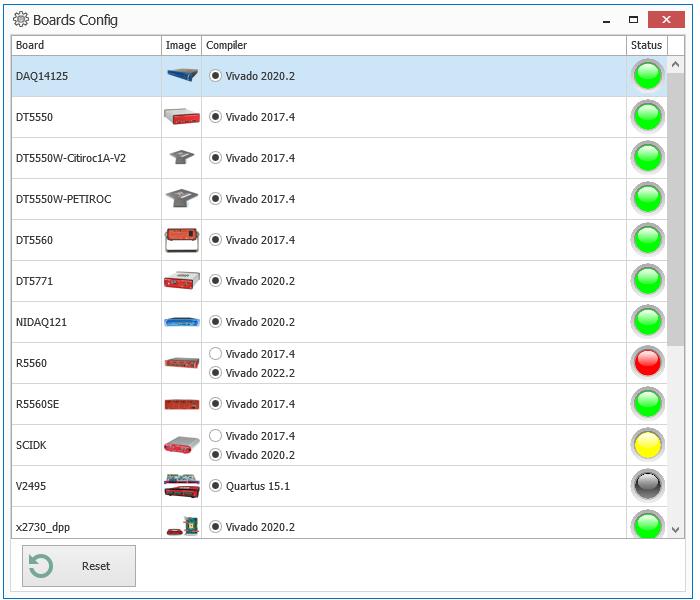
Click “Override Tool Selection” to open the Board Compiler Configuration window.
This dialog allows you to set a different compiler version for each board individually between the supported version.
Inside the Configuration Window
Each row represents one board and includes:
| Column | Description |
|---|---|
| Image | Image of the board |
| Board | Board name |
| Compiler | Radio buttons to choose the desired version |
| Status | Colored indicator showing the status of current configuration |
Status Indicators
| Color | Meaning |
|---|---|
| 🟢 Green | Default compiler is installed and in use |
| 🟡 Yellow | Custom compiler is installed and selected |
| 🔴 Red | Selected compiler is not installed |
| ⚫ Black | No compilers are currently available |
Hovering the mouse over a status icon displays a tooltip explaining the condition.
Reset to Default
Press “Reset” to restore all boards to their original (default) compiler configuration.
Saving and Applying Changes
- All modifications are saved automatically as soon as you select a compiler.
- The configuration is stored locally and reloaded at each startup.
- The changes are immediately visible in the main Boards Overview section.
Typical Workflow
- Open the Compiler Manager from the main toolbar.
- Use Auto Detect to find existing compilers.
- Add missing compilers manually if needed.
- Verify each board’s compiler in the Overview section.
- If necessary, open Board Configuration to adjust board assignments.
- Close the window — settings are saved automatically.
Notes
- When a compiler is removed from disk, any board using it will automatically switch to default.
- Vivado and Quartus are the only supported toolchains.
Summary
The Compiler Manager simplifies the management of FPGA toolchains by:
- Automatically detecting installations
- Keeping board configurations consistent
- Allowing board customization