List Module
Guide to using the List Module tool in Resource Explorer for downloading data from List Module blocks in your SCI-Compiler project.
Overview
List Module blocks added to the project diagram appear in the List Module list in Resource Explorer. These blocks allow downloading data that is provided as input to the selected List Module block.
Opening the List Module Window
To open the list module download interface:
- In Resource Explorer, expand the List Module tree
- Select the desired List Module component
- Press the Download button
The list module window opens showing the component name and its hexadecimal address in the title bar.
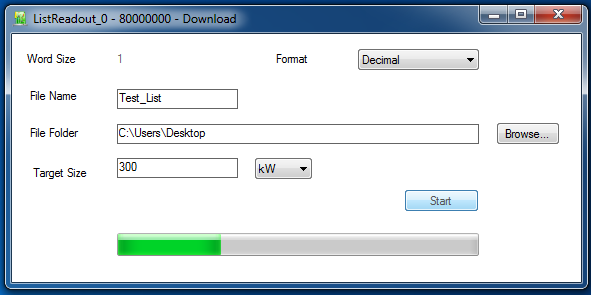
Download Configuration
Format Selection
Select the data format from the Format dropdown:
Decimal:
- Data is saved in decimal format
- Human-readable text format
Binary:
- Data is saved in binary format
- Raw binary data file
File Configuration
File Name field:
- Specify the name for the file containing the downloaded data
- Enter the desired filename (with or without extension)
File Folder field:
- Specify the path where the file will be saved
- Enter the full path or use the Browse… button
Browse… button:
- Opens a folder browser dialog
- Navigate through the computer to select the desired folder
- The selected path is automatically filled in the File Folder field
Target Size
Target Size field:
- Enter the total number of data in words to be downloaded
- The unit can be selected from the dropdown menu on the right side of the field
Available units:
- Words
- Kilowords (K)
- Megawords (M)
Data Download Process
Starting Download
- Configure all parameters (format, filename, folder, target size)
- Click the Start button
- The download process begins
Progress Monitoring
The progress bar at the bottom of the window shows the download progression:
- Empty bar: Download not started or just started
- Filling bar: Download in progress
- Full bar: Download completed
The progress bar allows following the data download status in real-time.
Related Documentation
- Resource Explorer - Main Resource Explorer overview
- Register Control - Register operations
- Oscilloscope - Waveform visualization
- Logic Analyzer - Digital signal capture